Sunday, 26 December 2010

Download QC OTA API Reference Handbook /Documentation:

Download QC OTA API Reference Handbook /Documentation:

If you are looking for OTA (Open Test Architecture APU provided by hp QC then your search will end here.
I will explain you easy way to download API references details from QC.
a. Login to your QC
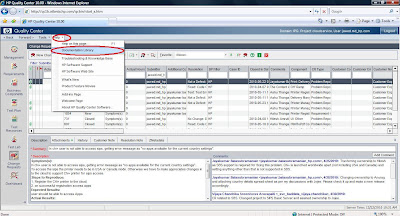
b. At Top most corner click on Help Link
c. From the pop-up window select Documentation Library as shown in below figure.


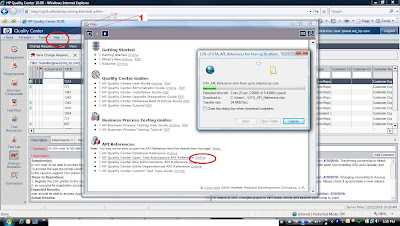
d. As soon as you will select above option a window will appear.
e. Select an option: HP QUALITY Center Open Test Architecture API reference Online
f. Click on online link next to the mentioned text
g. Save the references documentation at your drive.
h. Shown in below figure.


Hope this would be helpful !!

Thanks,

Md. Jawed

Log Visitors details using c#

Recently I have developed one application for the automation. It was web application.
I wanted to track the visitor visited or used my application and then store all the visitors information in "*.csv" file.
For that purpose I have used below code :

try
{
string strVisitorLogLocation=”C://VisitorsLog.csv” ;
string strIpAddress =Request.ServerVariables["HTTP_X_FORWARDED_FOR"];
if (strIpAddress == null)
{
strIpAddress = Request.ServerVariables["REMOTE_ADDR"];
}

string hostName = Dns.GetHostByAddress(strIpAddress).HostName;
StreamWriter wrtr = new StreamWriter(strVisitorLogLocation, true);
wrtr.WriteLine(DateTime.Now.ToString() + "," + strIpAddress + "," + hostName + "," + Request.Url.ToString());
wrtr.Close();
}

catch (Exception ex)
{
//
}

you can use this snipet of the code to get the visitor details like hostname,ipaddress of visitor machine and which all pages he is visited on you application. Thanks!!
~jawed.

Monday, 15 November 2010

Compare two Images File Using C#

Compare two Images File Using C#

In this post i m going to explain how to compare two images files using C#.
which would be very useful while performing Automation for checking whether two taken screen shot of web pages are same or not.

Below is the Code snippet which i have used for my automation purpose.

public void compareImages()
{
//First Image files
string Image1Location = @"C:\Pictures\For Website\DSCN0444.JPG";
//Second Image File
string Image2Location = @"C:\Pictures\For Website\DSCN0444.JPG";
try
{
string imageRef1, imageRef2;
//First Image BitMap
Bitmap img1Bitmap = new Bitmap(Image1Location);
//Second Image BitMap
Bitmap img2Bitmap = new Bitmap(Image2Location);
//Keep The Count of Pixel
int count1Pix = 0;
int count2Pix= 0;
//Decison whether Images are same or not
bool flag = true;
//Compare by Width
if (img1Bitmap.Width == img2Bitmap.Width)
{
//Compare by Height
if (img1Bitmap.Height == img2Bitmap.Height)
{
for (int i = 0; i < img1Bitmap.Width; i++)
{
for (int j = 0; j < img1Bitmap.Height; j++)
{
imageRef1 = img1Bitmap.GetPixel(i, j).ToString();
imageRef2 = img2Bitmap.GetPixel(i, j).ToString();
if (img1_ref != img2_ref)
{
count2Pix++;
flag = false;
break;
}
count1Pix++;
}
;
}
}
else
{
MessageBox.Show("Images are of Different Height");
}
}
else
{
MessageBox.Show("Images are of Different Width");
}
}
catch (Exception ex)
{
MessageBox.Show(ex.Message);
}

if (flag == false)
MessageBox.Show("Image "+Image1Location+"and "+ Image2Location+"are not same , total wrong pixel found " + count2Pix );
else
MessageBox.Show("Image " + Image1Location + "and " + Image2Location + "are same!! Thank you");
}


Thanks,
Md.Jawed
jawed.ace@gmail.com

Sunday, 14 November 2010

How to Read File Name from Pen/Removable derives using C#

How to Read Data from Pen/Removable derives using C#

In this post I would love to explain about how to read data or files from Removal derives/Pen drives etc.
Let me explain the scenario where I need this code to execute my automation.
Actually there was a scenario where I need to take the screen shot of the printer panel or web page and I have to compare that screen shot with predefined images stored in removal derives or pen drives.

Then let me share the code snippet which I have used to execute my purpose.
Public string getFilelocation(string imagename)
{
try
{
//go through all the driver
foreach (DriveInfo drive in DriveInfo.GetDrives())
{
//check whether the driver is readonly or not
if (drive.IsReady)
{
//verify that the deriver is removable only
if (drive.DriveType.ToString() == "Removable")
{
//read the contents of the removable drive
//check whether folder exit or not
if (Directory.Exists(drive.Name + "DCIM\\100HPAIO"))
{
//get the path of the folder
driverPath = drive.Name + "DCIM\\100HPAIO";
//get all the files available in that folder
string[] fileNames = Directory.GetFiles(driverPath);
if (fileNames.Length > 0)
{
foreach (string filepath in fileNames)
{
String imageName= Path.GetFileName(filepath);
If(imageName==ImageNameTaken)
{
retrun filepath;
}
}

} //end of checking file path in USB

}

}
}
return “FileNot Found”;

}
catch (Exception ex)
{

return ex.Message;
}
}
}

Hope that would be useful.
Thanks,
Md. Jawed

Thursday, 11 November 2010

*.CFG file used in Printer

*.CFG file used in Printer
Since feb 2010 I m working on Web connected printer which hp has launched in April 2010 and in july launched ePrint functionality in Printer. Now we are targeting all the hp printers families to be enabled with ePrint and web connected.
After this the printer market would not be limit only upto fax,scan and print images. We can do lots of things over the printer.
To read more about ePrint and web connected printers just wait for my next blogs.
Over all it is nice experience to work on this project. Now days most of time I m concentrating on debugging the servers , sharing my knowledge with other members, performing automation, building Simulator and setting up stacks for various press event across the world .
Now come to the point.
While doing development and Testing we need to test and verify the code or build on printer whether it is working correctly or as expected against various Build configurations. Generally we are deploying the various build on various server configuration and we need to test or verify the build on all the stacks/servers. And it’s not possible to hard code the server details in Firmware of printer but for the customer it would be hardcoded in Firmware (cuz Production environment is fixed)
To overcome this issue we are using secure.cfg file copied in SD card and inserted into Printer to perform registration on various servers configuration.
I have seen few new testers frequently using *.cfg file in printer without knowing how it is working and why we needs this *.cfg file.


Then I started sharing my learning with them. Today, I thought to put the same contents over here so that the knowledge would not be limit up to my team only.,
Here is what I have shared with them:
edffef

1. What is this cfg file.

Ø A file that contains data about a specific user, program, computer or servers. Used for a myriad of reasons, configuration files are generally read at startup by the Printer FW/operating system as well as by applications in order to customize the environment for the user.
In the Windows world, especially the earlier versions of Windows, .INI (initialization) files have been used. In Java, configuration data are stored in properties files. The Registry is also a storehouse of configuration data, which is widely used.


Ø A file with a .cfg extension is usually a configuration file. The file will be used by an application to load all the configuration settings. There is no standard format for a .cfg file and how it can be modified will differ from application to application.
Configuration(*.cfg) files typically store data in a key=value structure, which means each item of data (the key) has a name, and its value is its contents.

For example:-

Typical secure.cfg file structure:
[offramp]
offramp_ip=1.2.3.4

offramp_security=on
cert_validation=off
production_server=0
[sips]
sips_home_url=https://ec2-12.23.34.56.compute-1.amazonaws.com:443

allow_security=1
cert_validation=0

2. How *cfg is working in Printer.

Ø Just take the scenario where FW is hard coded with Server details and user has inserted CFG file in the printer.
As soon as user will insert the SD card in the printer, the printer would read the SD card and will check whether any secure.cfg file is present or not. If it content then while doing registration the printer will read that CFG file from SD card and will refer that server details.

Let me explain this through flow chart in broader way:


We need secure.cfg file inserted in to printer to point the printer on various server.

Hope it will be usefull for you. thanks!!

~jawed