Thursday, 3 February 2011

Test Automation FX - UI Testing in Visual Studio

Few days back there was some requirement in my project where we have to automate windows application/desktop application developed in C#.Net. I thought to develop an automation framework for the same. But before starting of this we thought for doing some goggle might be some tool would be available to perform my task.

After searching I came across TAFX(Test Automation FX). This was a nice tool which will give you the freedom of language, recording and nice flexibility to customize the generated code after recording.


Let me put some point which I have noted down from web:
Test Automation FX (TAFX for short) enables developers and testers to record and manage user interface tests from inside Visual Studio with 100% .NET code.
You go through this official web site of TAFX:
http://www.testautomationfx.com/
Go through below link to get screen shot of Automation of Calculator using TAFX:
http://www.testautomationfx.com/index.php/screenshots

Shortly, I m planning to give a try to this tool. Will forward my finding and experience in next blog soon.
this is not an open source tool :(
Please comments with your finding also about this tool.
~jawed

Monday, 10 January 2011

Send/Read an email from OUTLOOK using C#

Using this code you can send an Email from OUTLOOK and even you can Read an Email.
Here I am assuming that you have outlook installed on the machine where you are running this code.
Send an Eamil:
using Outlook = Microsoft.Office.Interop.Outlook;
public void sendEmail()
{
try
{
Outlook.Application oApp = new Outlook.Application();
Outlook.MailItem oMsg = (Outlook.MailItem)oApp.CreateItem(Outlook.OlItemType.olMailItem);
oMsg.HTMLBody =”Hello,Jawed”;
String sDisplayName = "MyAttachment";
int iPosition = (int)oMsg.Body.Length + 1;
int iAttachType = (int)Outlook.OlAttachmentType.olByValue;
Outlook.Attachment oAttach = oMsg.Attachments.Add(“C:\\testFile.jpg”, iAttachType, iPosition, sDisplayName);
oMsg.Subject = “This is my outLook email test”;
Outlook.Recipients oRecips = (Outlook.Recipients)oMsg.Recipients;
Outlook.Recipient oRecip = (Outlook.Recipient)oRecips.Add("jawed.ace@gmail.com");
oRecip.Resolve();
oMsg.Send();
oRecip = null;
oRecips = null;
oMsg = null;
oApp = null;
}
Catch(Exception ex)
{
//
}
}

Read an Email From OUTLOOK:
using Outlook = Microsoft.Office.Interop.Outlook;
public void readEmail()
{
try
{
Outlook.Application myApp = new Outlook.ApplicationClass();
Outlook.NameSpace mapiNameSpace = myApp.GetNamespace("MAPI");
Outlook.MAPIFolder myInbox = mapiNameSpace.GetDefaultFolder(Outlook.OlDefaultFolders.olFolderInbox);
//Read all the email one by one
for (int i = myInbox.Items.Count; i >=( myInbox.Items.Count-1);i--)
{
String strSubject = ((Outlook.MailItem)myInbox.Items[i]).Subject;
// Sender Email
string senderEmailid = ((Outlook.MailItem)myInbox.Items[i]).SenderEmailAddress;
string CreationTime=(( Outlook.MailItem)myInbox.Items[i]).CreationTime.ToString();

string strEmailBody=(( Outlook.MailItem)myInbox.Items[i]).Body;

string strEmailSenderName=(( Outlook.MailItem)myInbox.Items[i]).SenderName;

Console.WriteLine(“Subject: ”+strSubject);
Console.WriteLine(“sender Emailid: ”+ senderEmailid);
Console.WriteLine(“Creation Time: ”+ CreationTime);
Console.WriteLine(“Email Body: ”+ strEmailBody);

}
}

Hope this would be helpful for you!!
Feel free to post your comments.
~jawed
Catch(Exception ex)
{

]
}

Monday, 27 December 2010

SMTP/POP3 Settings for GMAIL, HOTMAIL, YAHOO, AOL, AIM

Gmail:
Incoming Mail server (POP3): pop.gmail.com
Port Number: 995
Outgoing Mail server (SMTP): smtp.gmail.com
Port number: 995
The Google Gmail SMTP Server requires an encrypted connection (SSL) on port 465.

HOTMAIL:
Incoming Mail server (POP3): pop3.live.com
Port Number: 995
Outgoing Mail server (SMTP): smtp.live.com
Port number: 25
The HOTMAIL SMTP Server requires an encrypted connection (SSL) on port 995 and even on 25.

YAHOO!!:
Incoming Mail server (POP3): Required Yahoo!! Plus account
Port Number: Required Yahoo!! Plus account
Outgoing Mail server (SMTP): smtp.mail.yahoo.com
Port number: 587

AOL/AIM:
Incoming Mail server (POP3): imap.aol.com
Port Number: 143
Outgoing Mail server (SMTP): smtp.aol.com
Port number: 587

Sample code OUTGOING:
SmtpClient sC = new SmtpClient("smtp.gmail.com");
sC.Port = 587;
sC.Credentials = new NetworkCredential(“USERNAME”,”PASSWORD”);
sC.EnableSsl = true;
sC.Send(mM);

Sample code INCOMING:
Pop3 pop3 = new Pop3()
pop3.ConnectSSL("pop3.live.com", 995);
pop3.Login("USERNAME", "PASSWORD");
List<string> uids = pop3.GetAll();
for (int i = totalMesg - 1; i >= 1; i--)
{
IMail email = new MailBuilder().CreateFromEml(pop3.GetMessageByUID(uids[i]));
Console.WriteLine(email.TextData.ToString());
Console.WriteLine(email.Subject);
Console.WriteLine(email.Sender.ToString());
Console.WriteLine(email.Date.ToString());

}
pop3.Close();

Feel Free to Ping me for any kind of help and support!! Thanks!!
~jawed

Sunday, 26 December 2010

Force your Thread to start in Single-threaded apartment state

Use the below piece of code if you want to start your thread from main thread passing multiple parameters to that thread:

//by default this thread will start in MTA(Multi Apartment state)
string firstValue;
int secondValue;
bool thridValue;
//create an thread
Thread myAutomationThread;
// The delegate to call.
ThreadStart ts = new ThreadStart(delegate() { callMyFun(firstValue,secondValue,thirdValue); });
// The thread.
myAutomationThread = new Thread(ts);
// Run the thread.
myAutomationThread.Start();
----------
Now if you want to start the same thread in Single apartment state then just add the below line of code.
(We need to start the thread in STA because WATiN will run in STA mode only)

myAutomationThread.SetApartmentState(ApartmentState.STA);

The whole piece of code will look like this:

Thread myAutomationThread;
ThreadStart ts = new ThreadStart(delegate() { callMyFun(firstValue,secondValue,thirdValue); });
myAutomationThread = new Thread(ts);
myAutomationThread.SetApartmentState(ApartmentState.STA);
myAutomationThread.Start();

~Jawed

Download QC OTA API Reference Handbook /Documentation:

Download QC OTA API Reference Handbook /Documentation:

If you are looking for OTA (Open Test Architecture APU provided by hp QC then your search will end here.
I will explain you easy way to download API references details from QC.
a. Login to your QC
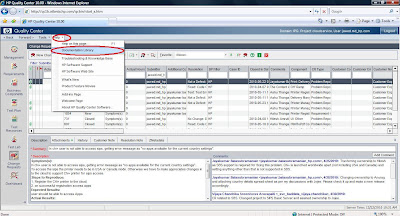
b. At Top most corner click on Help Link
c. From the pop-up window select Documentation Library as shown in below figure.


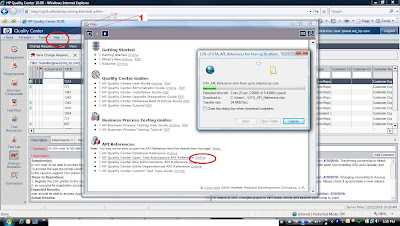
d. As soon as you will select above option a window will appear.
e. Select an option: HP QUALITY Center Open Test Architecture API reference Online
f. Click on online link next to the mentioned text
g. Save the references documentation at your drive.
h. Shown in below figure.


Hope this would be helpful !!

Thanks,

Md. Jawed